
How to use the Edgery trading journal
From your first sign-in to your first shared result. 11 short steps with real examples and screens from the app, about eight minutes to read.
Get your access
Edgery is invite only. On edgery.app fill in the Request access form with your name, email, phone (country code first) and the plan you want. Once it is approved you receive a personal link that works only for your email.
Open the link, choose a password and tick the Terms box. Your own empty journal opens straight away. Nobody else can see your trades.
You fill in Alex Morgan, alex@example.com, +44 7700 900123 (country code first) and the plan Free with Fusion Markets. When it is approved, Alex receives a link like edgery.app/join/… that only works with alex@example.com.
Put it on your computer or phone
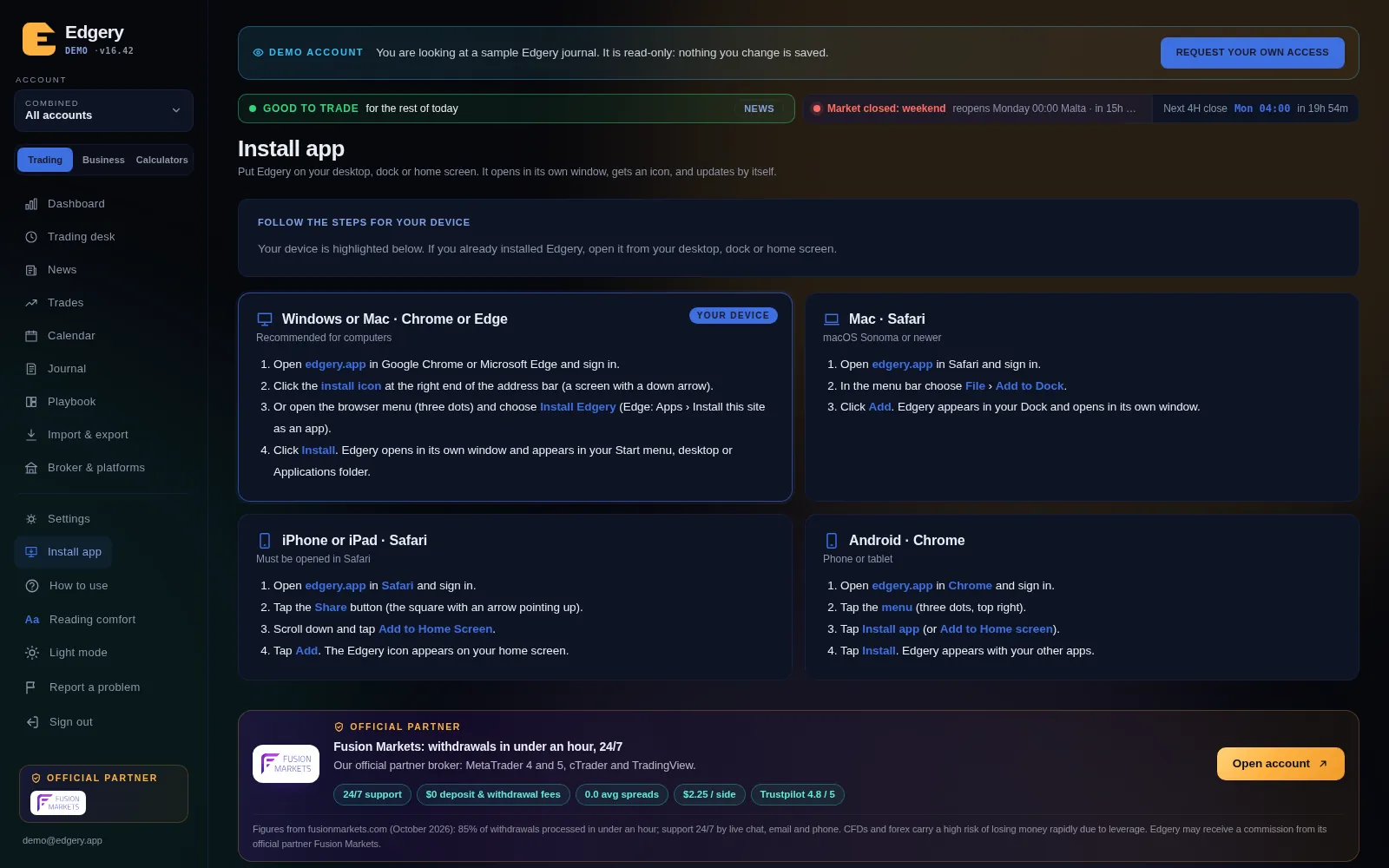
In the app open Install app (bottom of the menu). It shows the steps for your device and, in Chrome or Edge, an Install Edgery now button. Edgery then opens in its own window with an icon, like a normal app.
Set up your trading accounts
Go to Settings › Accounts. Add one row per broker account: name, broker, type (demo, live or prop firm), currency and starting balance.
- Balance now shows what Edgery calculates. If it differs from your broker, press Edit next to it and type the balance your broker shows. Your trades stay as they are.
- Pick the account you are working on in the account menu at the top left. All accounts shows everything together.
- Set Your timezone in Settings so sessions, candle closes and trade times are shown in your local time.
You add Fusion Markets MT5, broker Fusion Markets, type Live, currency USD, starting balance 10,000. A week later your broker shows $10,184.20 but Edgery shows $10,180.70 because of a fee you did not log. Press Edit, type 10184.20, save. Edgery now matches your broker and your trades are untouched.
Log a trade
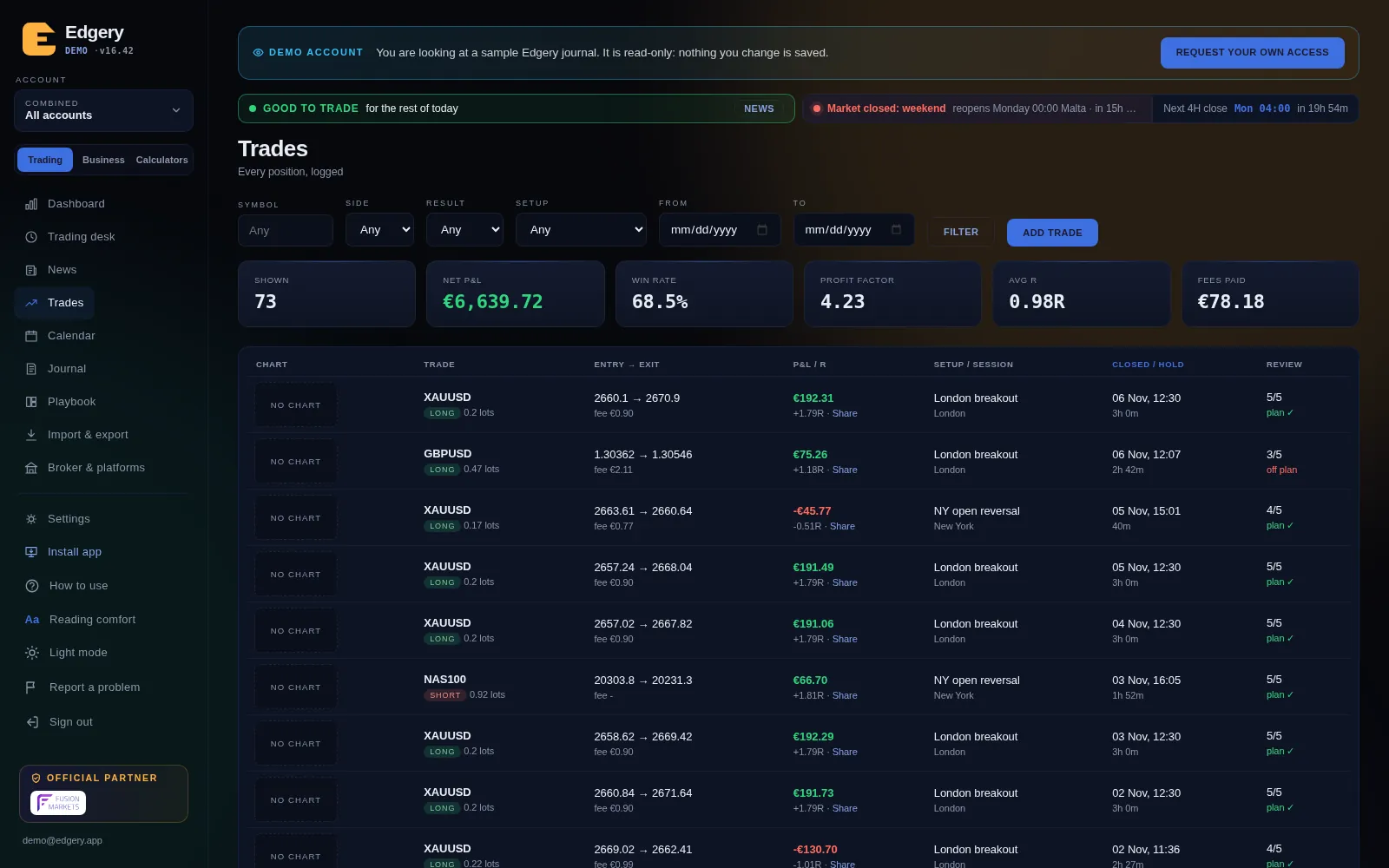
Open Trades and press Add trade.
- Choose the account and type the symbol, for example XAUUSD. The contract size fills in by itself (gold 100 oz per lot, silver 5,000, forex 100,000, crypto 1) and cannot be changed by mistake.
- Enter lots, entry price, stop loss and target. The live calculator shows what you lose if the stop hits, the percentage of your account, the risk to reward and the broker commission.
- When the trade is closed, add the exit price and exit time. Profit is converted to your account currency automatically, so a gold trade on a euro account shows euros.
- Tick your checklist, rate your execution, note your emotions and add a chart screenshot if you want. Then Save.
Many trades at once? Use Import with a CSV file (columns: symbol, side, qty, entry_price, entry_time, and optional exit_price, exit_time, fees).
Edgery does not connect to TradingView or to your broker. TradingView is where you trade (with a Fusion account connected in TradingView’s Trading Panel); Edgery is where you record and review those trades.
Gold long, 0.10 lots, entry 4,031.20, stop 4,026.70, target 4,040.60 on a $10,000 account.
| Stop distance | 4,031.20 − 4,026.70 = 4.50 points |
| If the stop hits | 4.50 × 100 oz × 0.10 lots = −$45.00 (0.45% of the account) |
| If the target hits | 9.40 × 100 oz × 0.10 lots = +$94.00 |
| Risk to reward | 9.40 ÷ 4.50 = 1:2.09 |
The calculator in the trade form shows all of this before you save, plus the commission from your account settings.
Your trading day
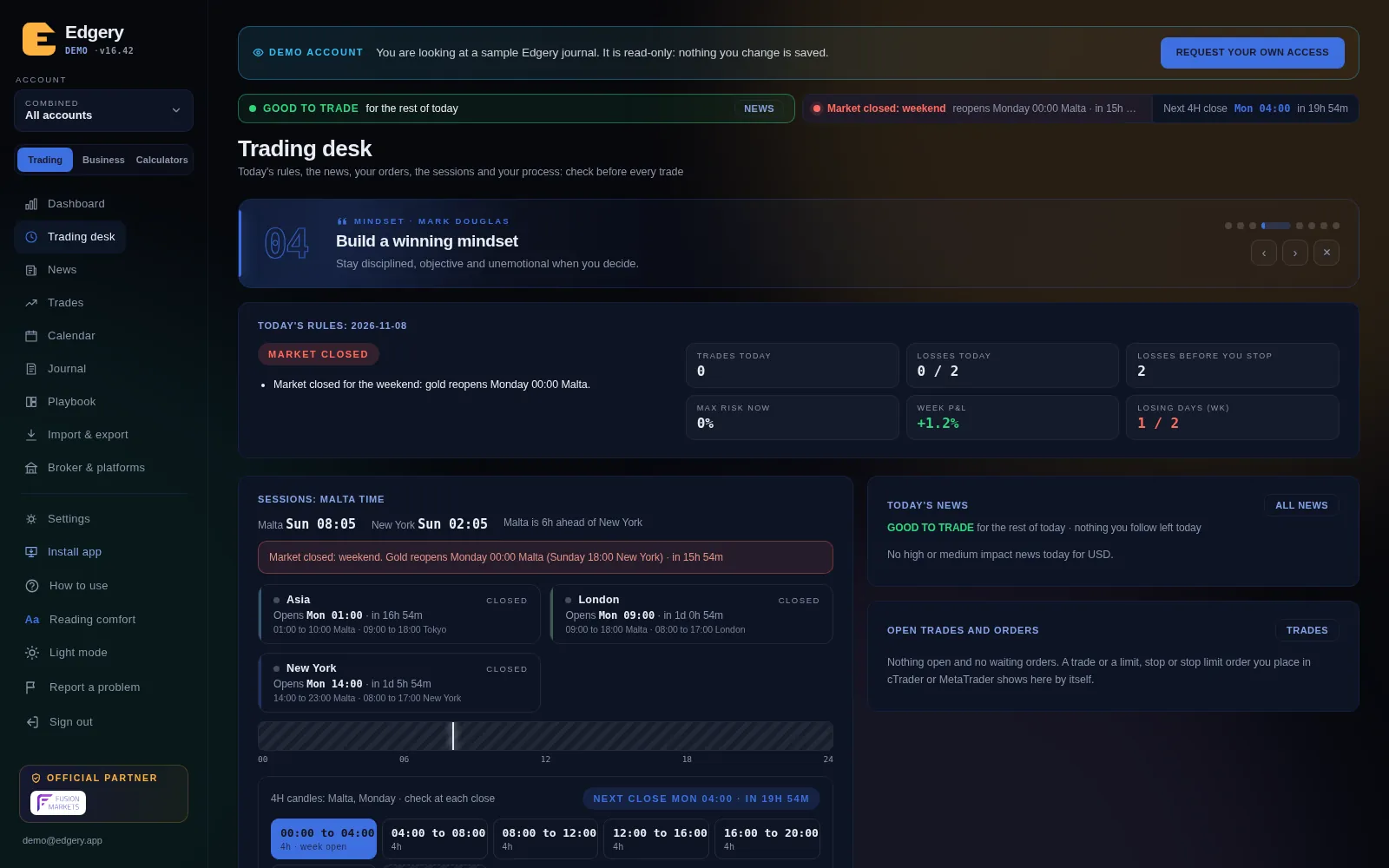
- Trading desk: the Asia, London and New York sessions in your time, today's rules and how many trades you have left.
- Playbook: your setups and your non-negotiable trading rules.
- Journal: a short note for each day, what went well and what to fix.
Your Playbook says maximum 2 trades a day and stop after 2 losses. You win the first trade at the London open and lose the second. The Trading desk now shows 0 trades left for today, so you close the charts instead of revenge trading.
Candle close alerts on your phone
- Install the free Pushover app on your phone and copy your user key.
- In Edgery go to Settings › Notifications, paste the key and press Save.
- Tick the candle closes you want, from 1 minute to weekly. 4H closes can follow TradingView or MetaTrader 5 times.
You trade gold on the 4H with TradingView. TradingView 4H candles close at 2:00, 6:00, 10:00, 14:00, 17:00 and 22:00 New York time. Edgery shows and sends them in your own time, for example 8:00, 12:00, 16:00, 20:00, 23:00 and 4:00 in Malta during summer time, with a reminder 10 minutes and 1 minute before each close.
Review and improve
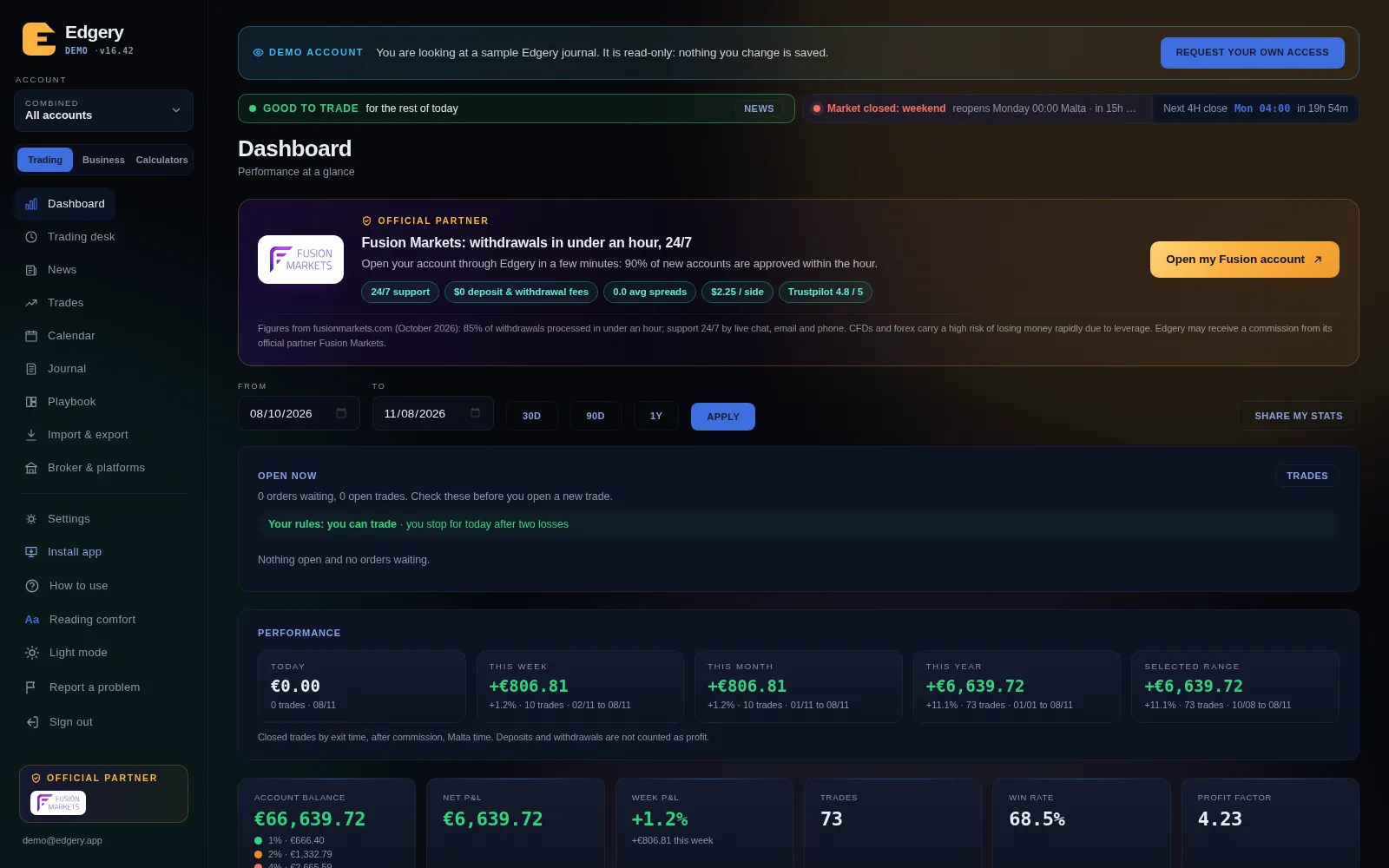
- Dashboard: win rate, profit factor, expectancy, drawdown and your equity curve for any date range.
- Calendar: every day green or red, so patterns jump out.
- Finance: payouts, prop firm fees and other costs, so you see what the trading business really earns.
- Calculators: position size before you enter, and the consistency rule for prop firm payouts.
Position size before you enter: $10,000 account, 0.5% risk = $50. Gold entry 4,031.20, stop 4,026.70: 4.50 points × 100 oz = $450 per lot. $50 ÷ $450 = 0.111, rounded down to 0.11 lots, so the real risk is $49.50 and never more than you chose.
Know your edge: win rate and R:R
You do not need to win most of your trades. What matters is how much you make on a win compared with what you lose on a loss. Open Calculators › Win rate & R:R in the app (or the free Win Rate Calculator), type your numbers or press Use my journal, and pick 1, 3, 6 or 12 months.
- 1R is what you risk on one trade. A loss costs 1R. A win at 1:2 pays 2R.
- Edge per trade = (win rate × R:R) − (loss rate × 1R). Above zero, the maths works for you.
- Break-even R:R = loss rate ÷ win rate. At 40% wins that is 0.60 ÷ 0.40 = 1:1.5.
A €2,000 account, 100 trades, 40% wins (40 wins, 60 losses), 1% risk of the current balance on every trade:
| R:R | Edge per trade | Balance after 100 trades | Result |
|---|---|---|---|
| 1:1 | −0.20R | €1,629 | −€371 |
| 1:1.5 | 0R | €1,985 | −€15 |
| 1:2 | +0.20R | €2,416 | +€416 |
| 1:2.5 | +0.40R | €2,938 | +€938 |
| 1:3 | +0.60R | €3,570 | +€1,570 |
At 1:2: 40 wins × 2R = +80R, 60 losses × 1R = −60R, net +20R. Edge = (0.40 × 2) − (0.60 × 1) = +0.20R per trade. At the starting 1R of €20 that is about €400; with compounding it is €2,000 → €2,416 (+20.8%), while being wrong 60 times out of 100. At 1:1.5 the maths is exactly break-even before compounding and slightly negative after it, so aim clearly above it. Costs (commission, spread, slippage) are not included.
Share your results
- Share my stats on the Dashboard: choose today, this week, this month or all time. You can hide the money amounts and your invite link.
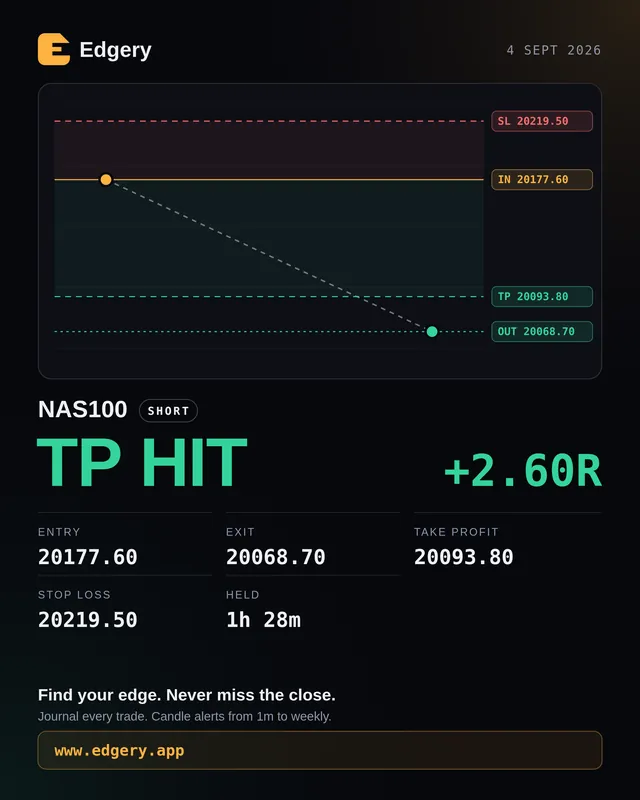
- Every closed trade has Share under its result: the card says TP HIT, SL HIT or how it closed, with the chart.
- Your personal invite link is in Settings › Invite traders.
You close a gold long at the target for +2.39R. Press Share under the result and send the TP HIT card to your trading group on WhatsApp. If you hide your invite link, the card shows www.edgery.app instead.
Make it easier on your eyes
Press the Aa button (top of this page, the website and the app menu) to change the font (including an easy-to-read font made for low vision), the text size and the colours (Soft or High contrast). Your choice is saved on that device. In the app you can also pick light or dark mode and the accent colour in Settings › Appearance.
Privacy and help
Each member has a separate journal and only you can see your trades. Two-factor sign-in is in Settings. Read the Terms and the Privacy Policy. Questions: reply to your invite message.